Mino Money
Built the cloud infrastructure, backend API, and mobile app.
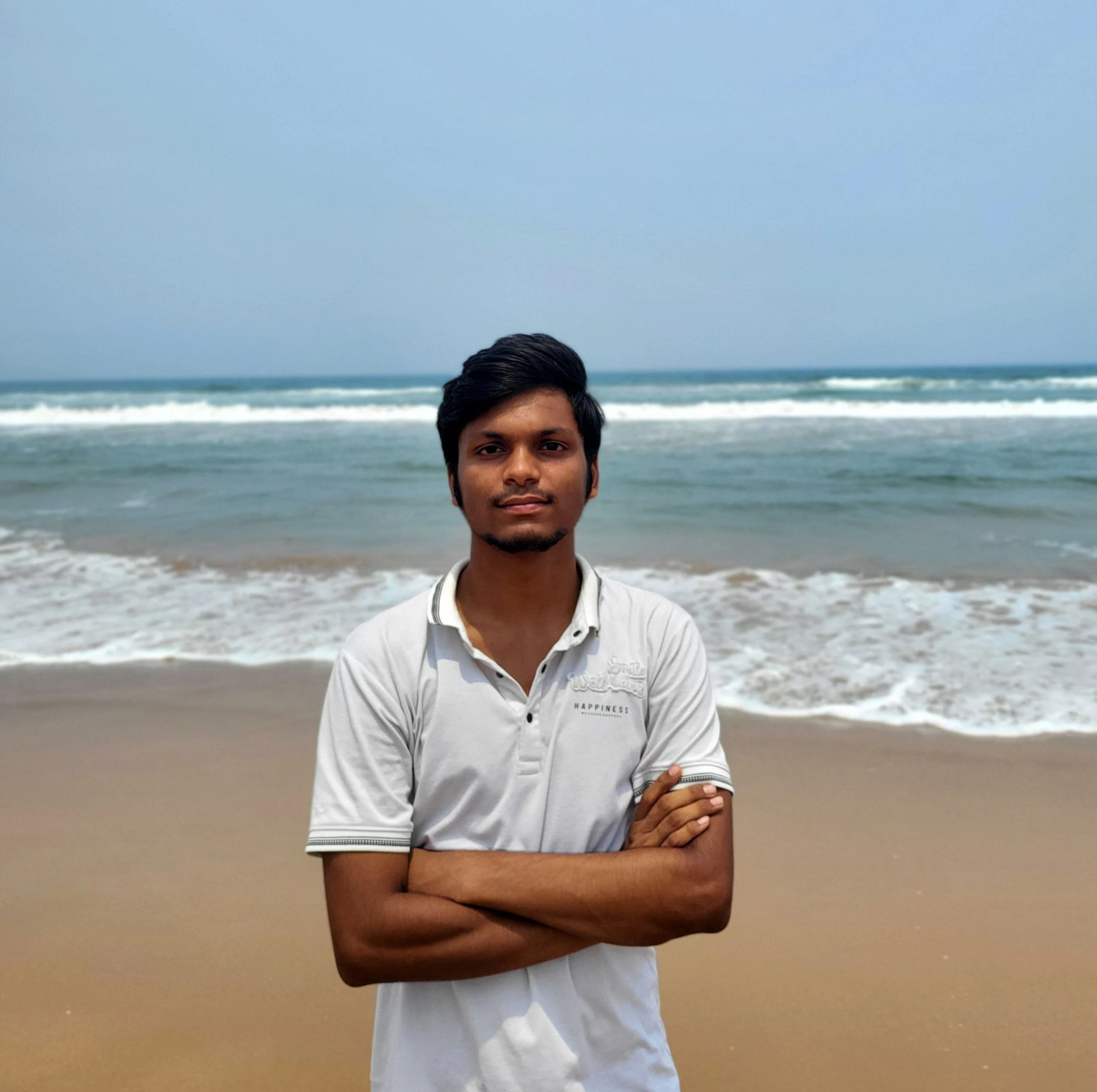
Bongi SatyendraSoftware Development Engineer · Neosurge
My focus is cloud infrastructure and security. At Neosurge, I also build backend services and applications. Outside work, I maintain personal products and open-source tools, and write about what I learn.
01 / Cloud & security
Deployments, reverse proxies, monitoring, and security. My work includes campus servers at IIIT Kota and cloud infrastructure at Neosurge.
View infrastructure workPick a layer to explore my work
Built the cloud infrastructure, backend API, and mobile app.
Developed and released the mobile app at Neosurge.
Developed and released the mobile app at Neosurge.
Independent products
Personal projects I maintain alongside my day job.
Independent product · For Gemini users
Discover custom Gemini personas, save the useful ones, and share your own with the community.
Open source
Tools for developers, campus systems, and mobile applications. Explore the implementation or contribute.
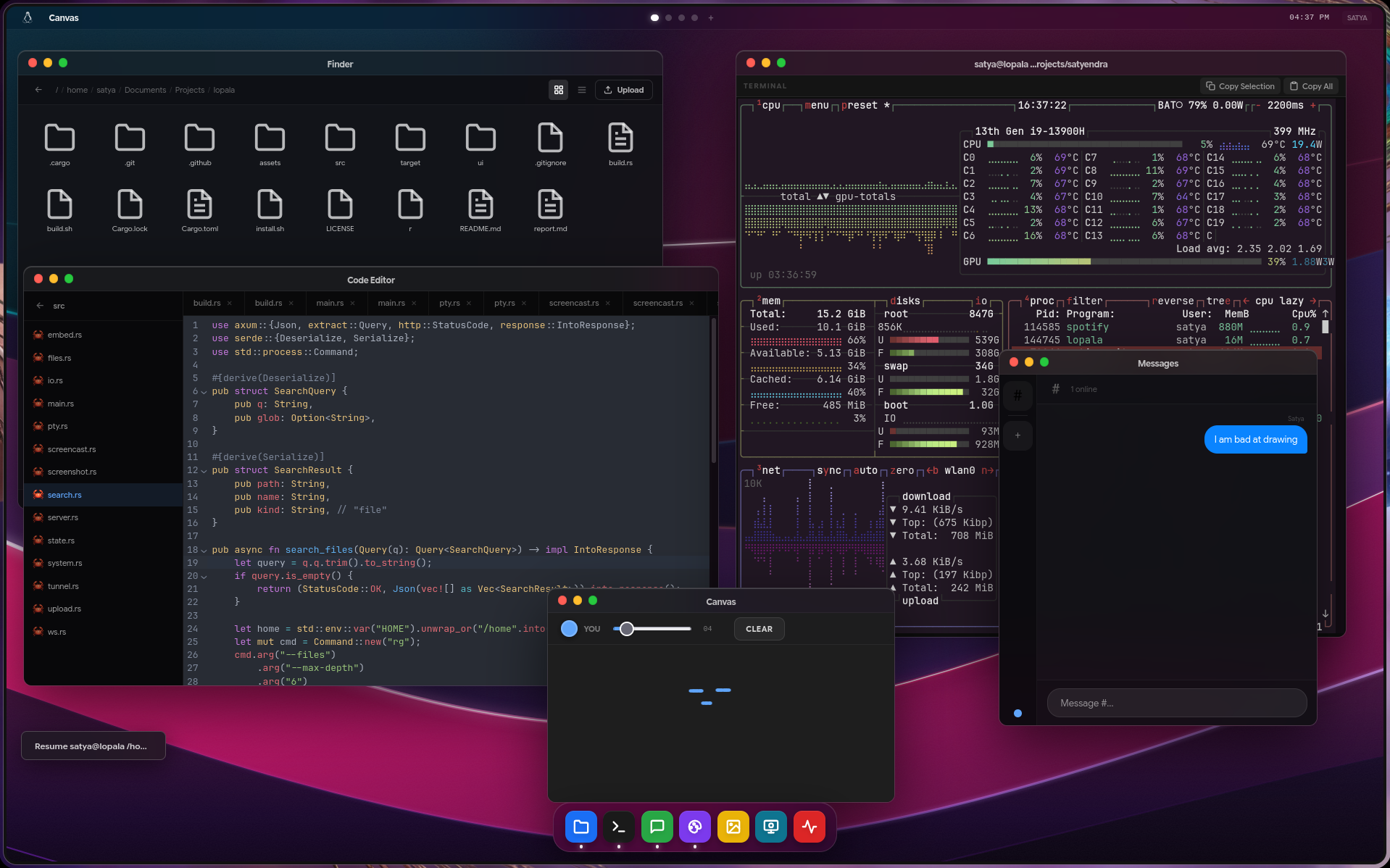 Explore the build
 Featured build · Rust / Vue / WebSockets
Experience
Cloud infrastructure and security, followed by backend and application development.
Full experienceSoftware Development Engineer
Infrastructure Lead
Security Consultant
Writing
Practical guides, project write-ups, and a closer look at how systems work.